Monday, May 17, 2010

PowerPoint 2002 & 2003 - Add Shapes

Geetesh Bajaj
Author of Cutting Edge PowerPoint for Dummies
www.cuttingedgeppt.com

1. Select an existing shape within the Organization Chart and right click it.
2. In the resultant menu, choose either Subordinate, Coworker or Assistant depending upon the type of new shape you want to add.

Friday, April 9, 2010

Photoshop 7/CS/CS2/CS3 - Creating Fog

by Elijournals

There are different ways you can add fog to an image in Photoshop. How much control you need over the fog placement will determine which method you use, but we’ll show you two ways to get you started.

Read the Full Tutorial

Tuesday, February 9, 2010

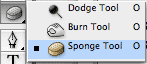
Photoshop 7/CS/CS2/CS3 - Sponge Tool

by PhotoSpin

Bring out your subjects in Photoshop using the sponge tool.

An easy way to bring out your subjects in Photoshop is to use the sponge tool. The Sponge tool 'paints on' increased or decreased saturation.

Here's how to do it:
Using a soft edge and the Saturation blend mode, brush over the part in your design that you want to emphasize. Joilá! The heightened saturation will make it pop out.

Just be sure not to overdo it.

Thursday, January 21, 2010

Accent Marks


Do you ever wonder how to type those nifty little accent marks over certain words like touché?
Being able to type characters with accents over them gives extra meaning and sound to the words. Whether you're writing a personal letter or a blog post, knowing how to easily include special characters and symbols is useful.

Here's how to do it:

Mac users:
Option + e,  the letter (á, é, í, ó, ú)
Option + `,  the letter  (è,à, ì, ò, ù)

PC users: 
*The numeric keypad must be used, with Num Lock on. The modified letter appears after the keys are pressed and released.
ALT + 0224 = à      
ALT + 0232 = è              
ALT + 0242 = ò        
ALT + 0225 = á
ALT + 0233 = é
ALT + 0243 = ó

Wednesday, December 9, 2009

Photoshop 7/CS/CS2/CS3 - New Layer Shortcut

by Elijournals


Whenever you add a new layer to the Layers palette, it’s always placed above the current active layer. Or, in the case of CS2/CS3, it’s placed above the top most active layers when multiple layers are selected. But there are ways to override this and precisely control where your new layers are placed. First, select the layer just below where you want the new layer placed and add your layer. Or, if you already have a layer active and want the new layer to be located below it in the stacking order, simply [command]-click ([Ctrl]-click in Windows) on the Create A New Layer button at the base of the Layers palette.

Monday, October 19, 2009

Word 2007 - Inspecting a Document for Hidden Data

by PhotoSpin, Inc.

To inspect a document for hidden data in Word 2007 under the office button select prepare>inspect document. Next select the options that you want inspected and click on the inspect button. The results of the inspection will be displayed in the document inspector dialog box. You can now remove the hidden data that you do not want to appear in the final document. After removing your hidden data, you can mark the document as final. To do this, under the office button choose prepare>mark as final.

Tuesday, September 1, 2009

InDesign - Text On A Path

by John Feld
The Graphics Report

For some fun effects try creating a path, then attach type to it with the Type on a Path tool. First place a tab followed by an interesting character, then using the Tab
dialog, set the tab leader with some interesting dingbat from a
dingbat font. This works well with all sorts of characters such as
snowflakes and musical notes if you have the font Sonata.
If you have a long path you may have to extend the tab dialog quite a
ways to cover the whole path.